VeeShowby VeeStudio
Early access Now open to the first control rooms

The whole show.
One control room.

VeeShow brings audio, video, lighting, MIDI, OSC and timecode into a single window, together with stage monitors, teleprompter and controllers. It runs on Mac and Windows, and several computers can work on the same show at the same time.

Mac and Windows Several computers, one show No internet required
VeeShow — Show mode
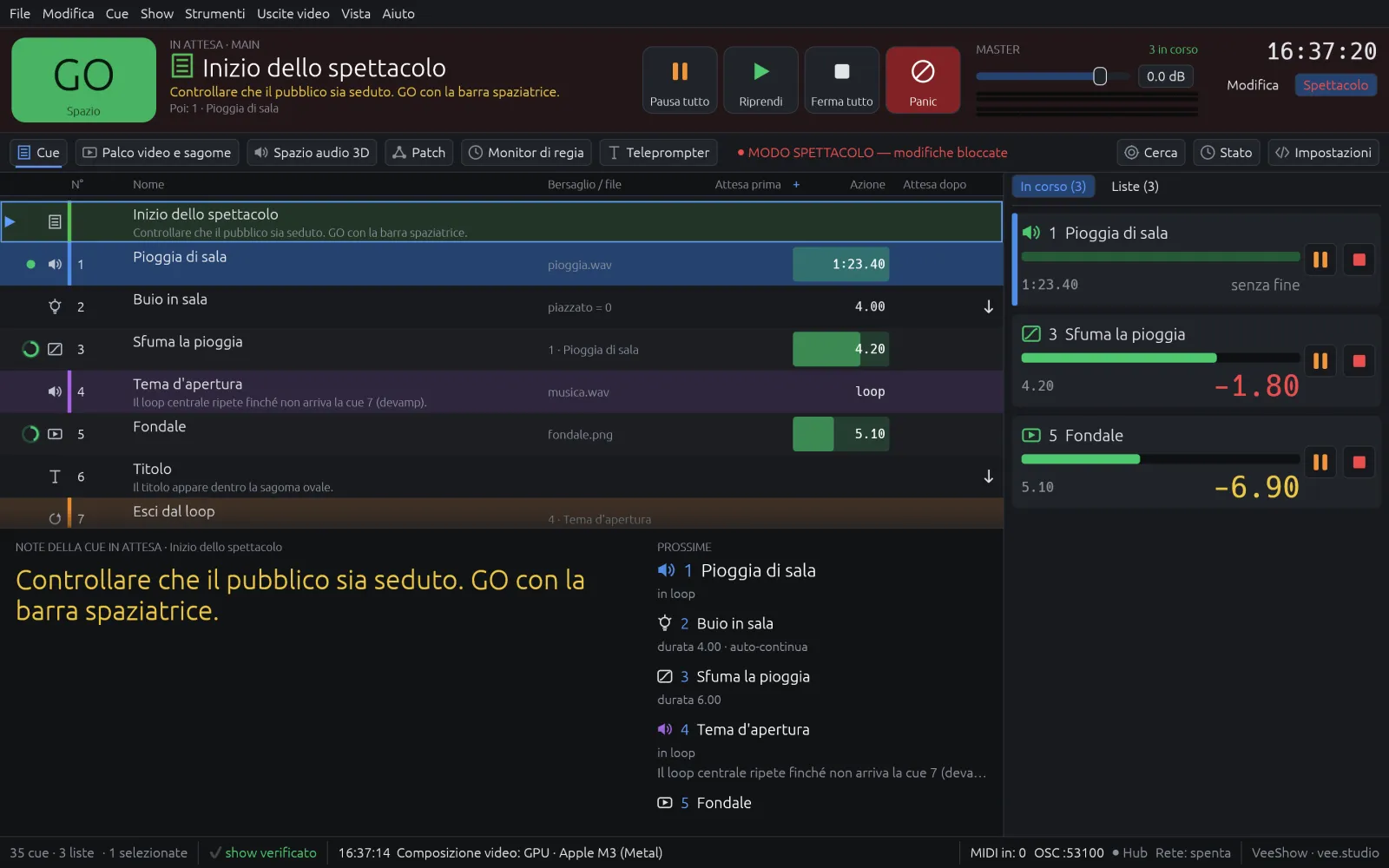
VeeShow in Show mode: the standby cue with large notes, the upcoming cues and the running cues with their remaining time
Why VeeShow

What usually takes several programs open at once fits in a single window here.

Control rooms often end up with one program for cues, one for the prompter, one for the monitors, one for the controllers, and a message to the colleague on the other computer to keep everyone in step. VeeShow brings it all together: every part knows about the others, and everything lives in the same show file.

One show, every department. Sound, video, lighting and stage management work on the same show, while the actors follow the script: each from their own place.

See the features
Features

Built for opening night. And for every night after.

Every feature starts from a control room question: what you need to go on stage with confidence, what saves time in rehearsal, what prevents a mistake in front of the audience.

Cues and show control

A cue list that thinks like a control room.

Every moment of the show is a cue: a sound, a video, a lighting change, a message to another system. You line them up, group them, link them, and GO does the rest.

  • More than twenty cue types — audio, live microphone, video, image, text, fade, lighting, MIDI, MIDI file, OSC, timecode, waits, scripts and control cues such as start, stop, goto, load and arm.
  • Groups in five modes — all together on a timeline, one after another, first and enter, playlist, random.
  • Pre and post waits, auto-continue and auto-follow to build sequences that run by themselves.
  • Triggers from keyboard, MIDI, OSC, timecode and wall clock.
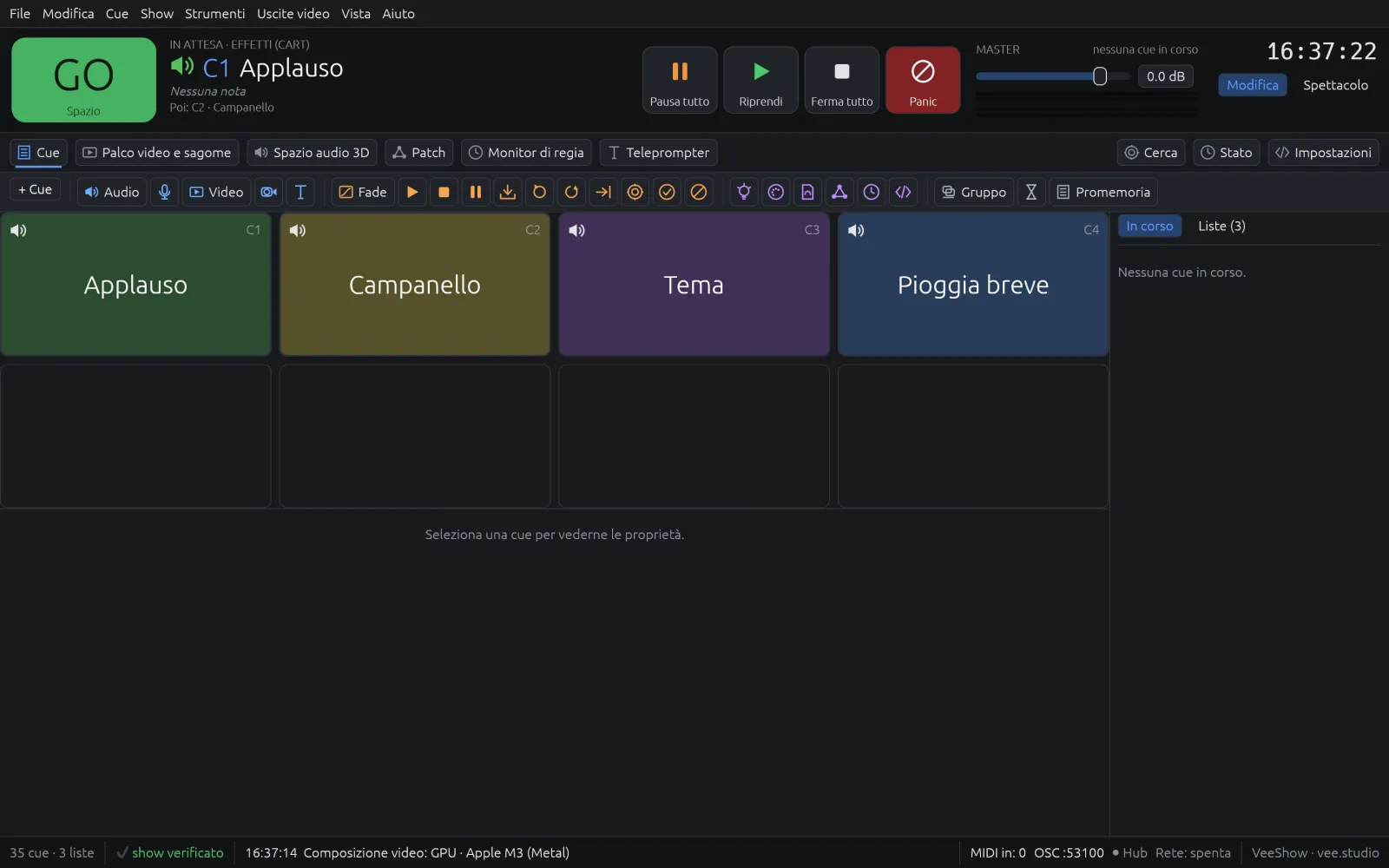
  • Cart wall for on-call effects, and a Show mode with large notes, upcoming cues and remaining time.
  • Edit several cues at once, command palette, search and renumbering.
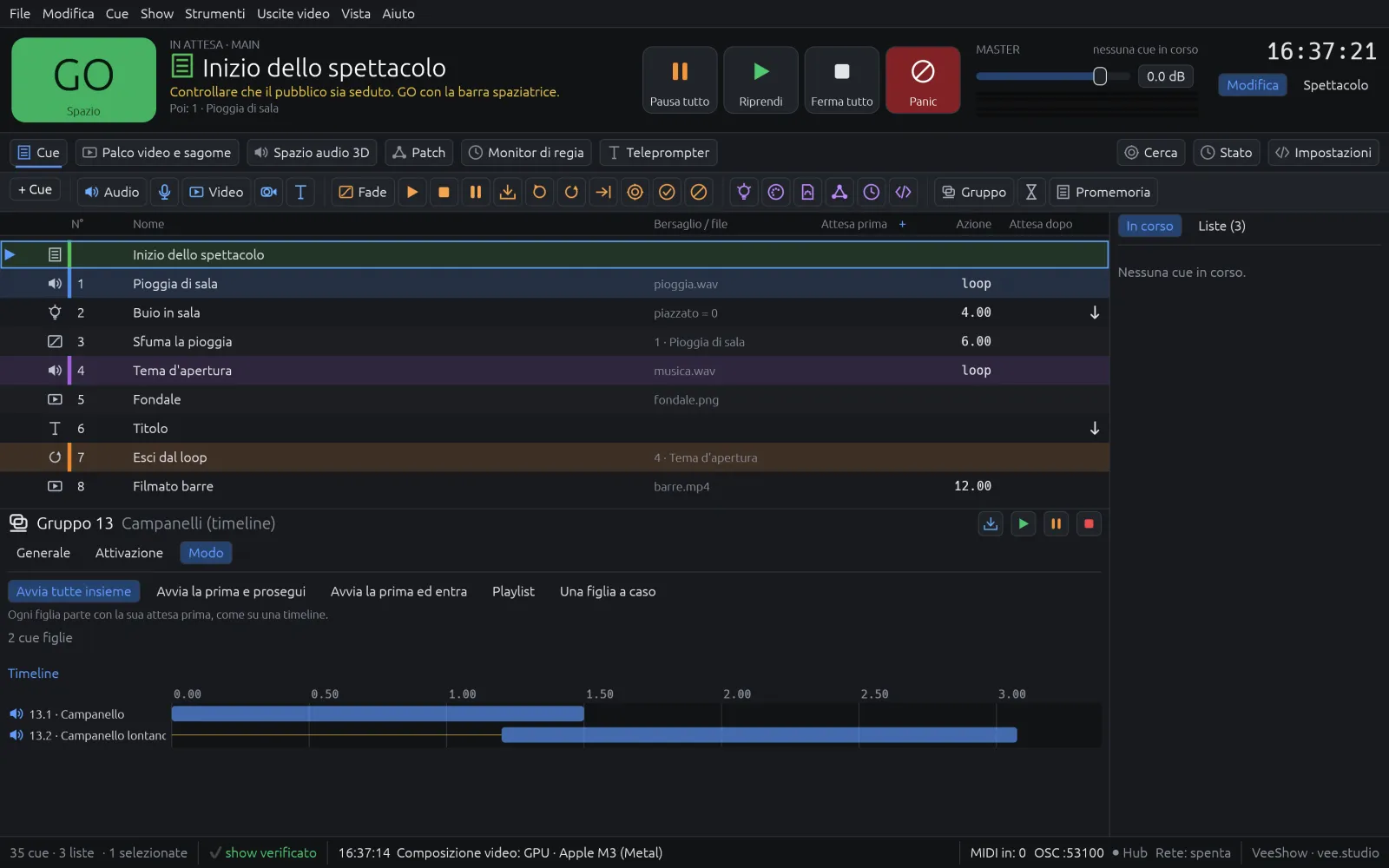
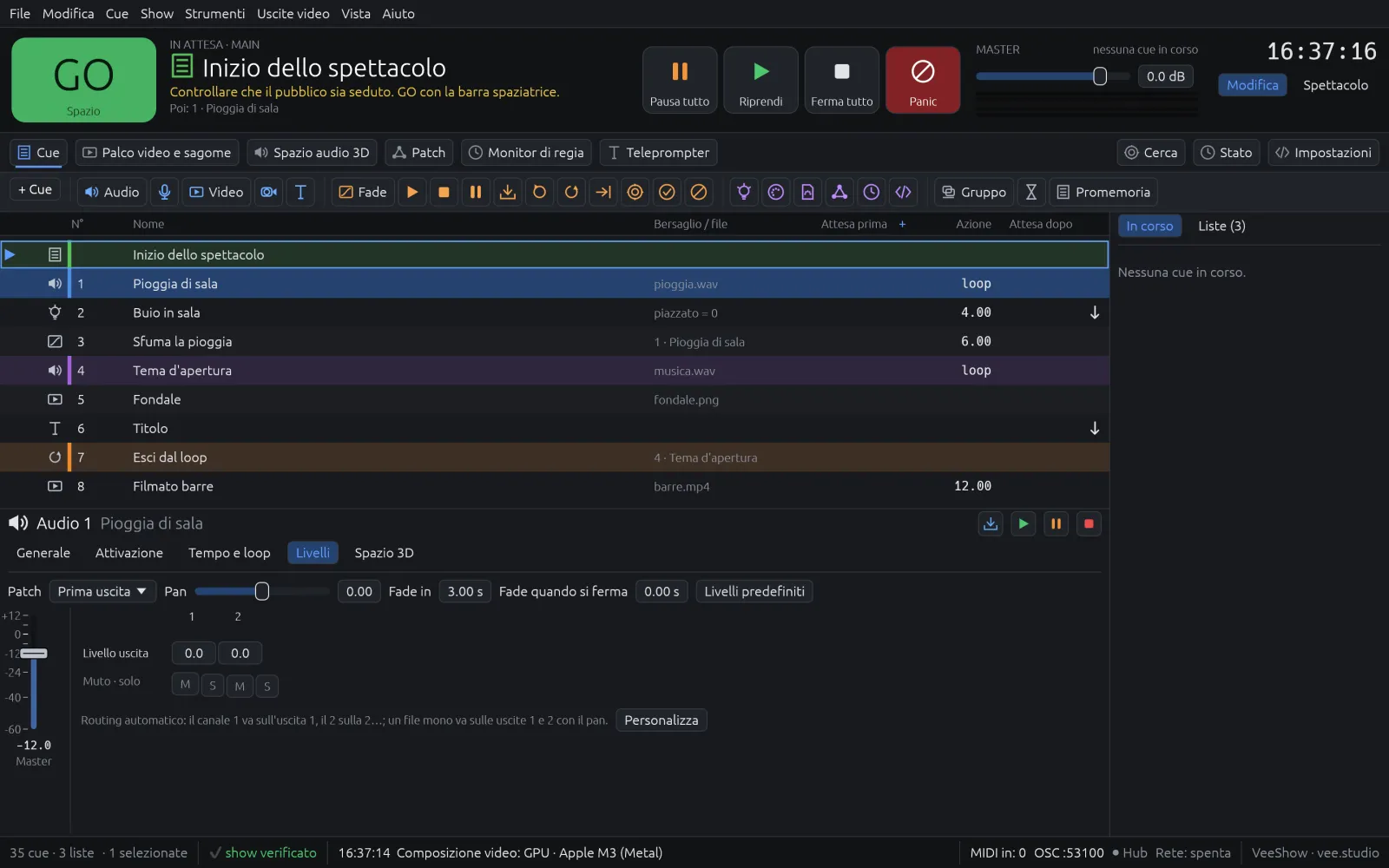
Cue list and group timeline
Cue list with a group in timeline mode: two audio cues overlapping in time
Cart wall with four audio cues ready to fire
Audio

Truly multichannel, from the first cue.

Every patch uses all the channels of the audio interface. Every cue decides, crosspoint by crosspoint, how much to send to each output, even while it plays.

  • Channel × output matrix for every audio and microphone cue, with levels you can change live.
  • Per-output fades with curves, mute and solo for every output.
  • Named outputs and a pink noise test for each one.
  • Live microphone as a cue, with the same matrix and the same fades.
  • Waveform with slices; one click loads the cue from that point to rehearse a passage.
  • Audio interface lost: immediate warning, a new attempt every 2 seconds, and cues resume from where they were.
Audio cue levels
Levels tab of an audio cue with the matrix between the file channels and the patch outputs
3D spatial audio

Sound that moves through the room.

Draw the room with its loudspeakers, place a sound in space and send it around the audience. VeeShow works out the level of every loudspeaker, moment by moment.

  • 3D loudspeaker rooms, even with loudspeakers on different patches and interfaces.
  • DBAP and horizontal VBAP, distance attenuation and per-loudspeaker delay, room by room.
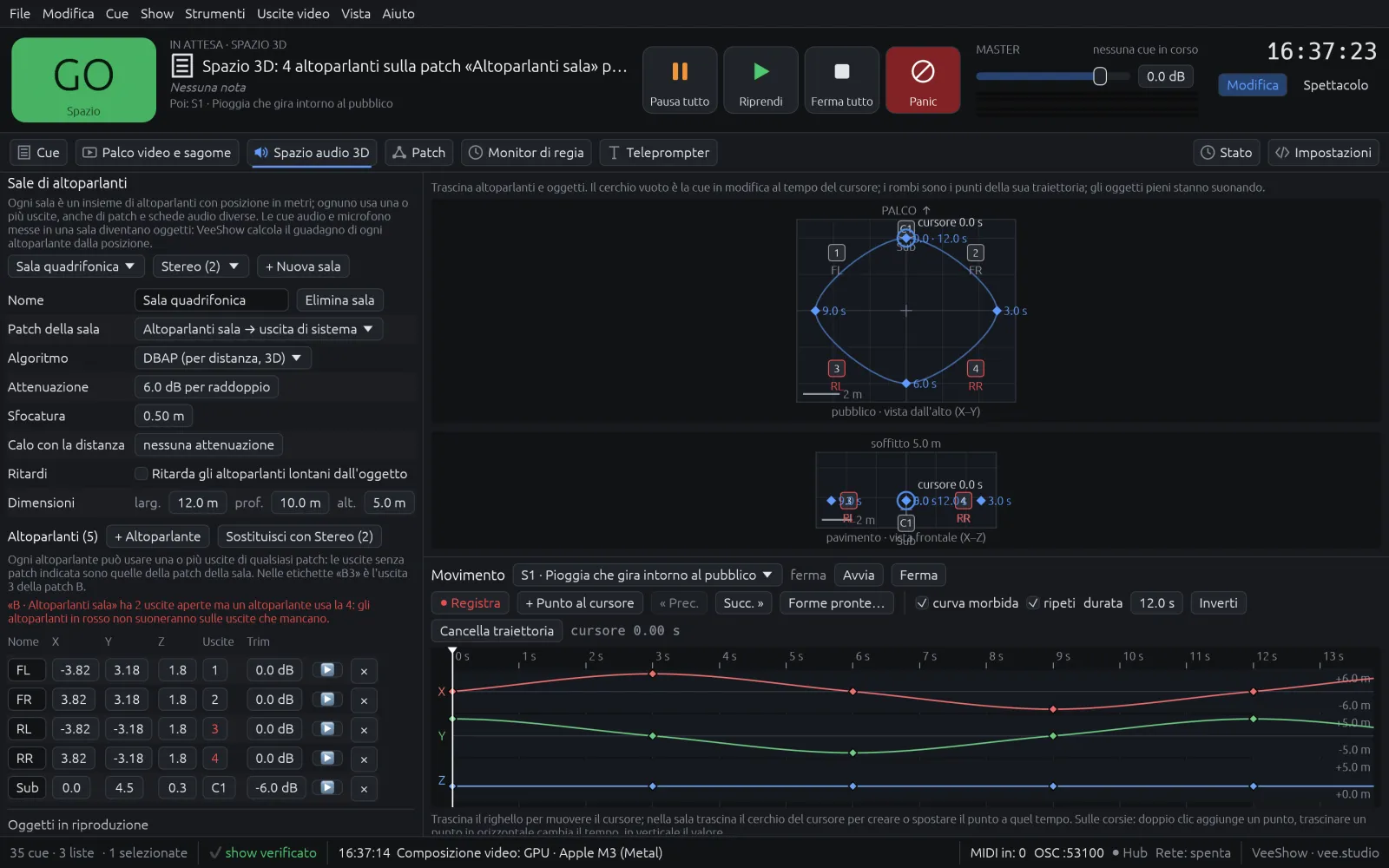
  • Movement timeline with X, Y and Z lanes, ready-made shapes and live recording by dragging the point around the room.
  • Top and front views, and live repositioning even during the show.
3D audio space
3D audio space: a quad room seen from above and from the front, with a sound's path and the movement timeline
Video, stages and masks

Stages, regions, outputs. And masks at every level.

Build the video stage the way you see it on set: a surface split into regions, each sent to one or more projectors with its own warp. Then trim the light exactly where it belongs.

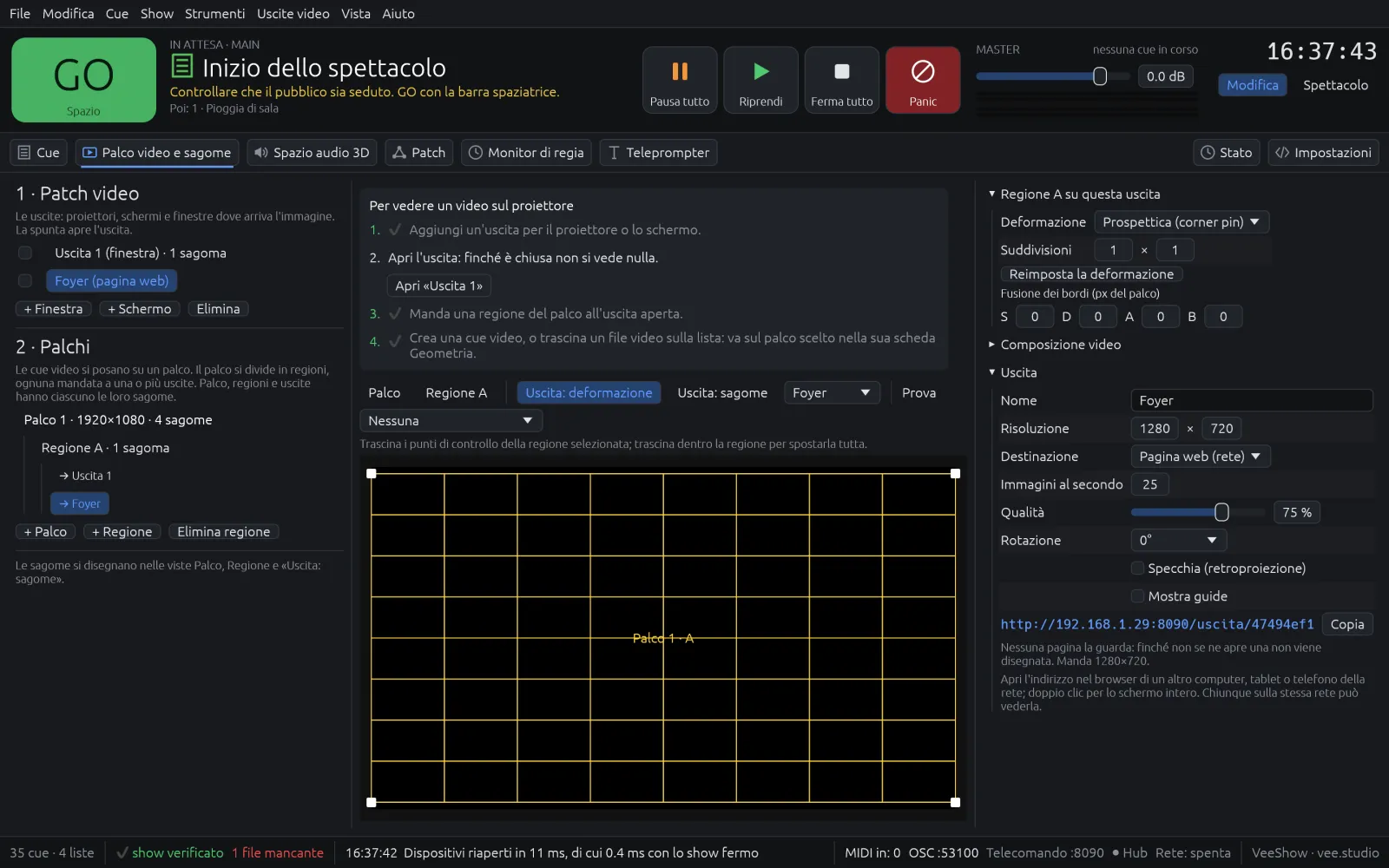
  • Stage → regions → outputs: one region feeds several outputs, and every link has its own warp.
  • Perspective, linear and Bézier warping, edge blending between projectors, rotation and mirroring for rear projection.
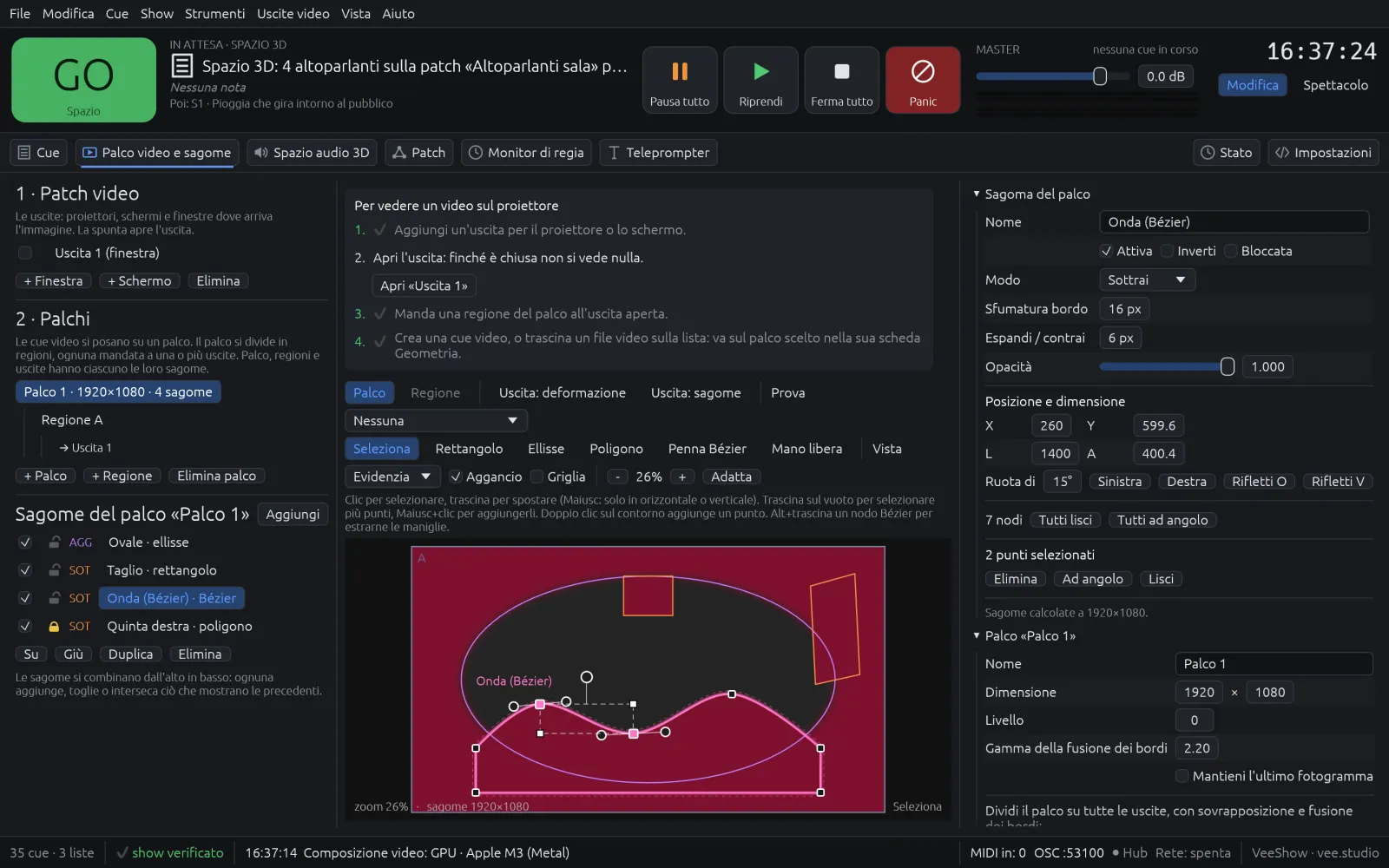
  • Vector and image masks on stage, region and output, with feather, invert, expand and animation through a Fade cue.
  • Mask editor with rectangle, ellipse, polygon, Bézier pen and freehand, snapping, grid and a photo of the set underneath.
  • Test patterns — grid, checkerboard, bars — in the editor or straight on the projectors, through masks and warping.
  • 16 video effects and 16 blend modes; GPU compositing with automatic fallback to the CPU.
Video stage and masks
Mask editor: a Bézier mask with its control points over the stage, alongside an ellipse, a rectangle and a polygon
Warping a region on an output, with the grid and the corner points
Virtual network outputs

Video and audio in any browser on the network.

A video output can be a web page: the foyer, the dressing rooms, the lighting desk open it in a browser. An audio patch can play on phones or reach another computer.

  • “Web page” output with the same regions, warps and masks as a projector.
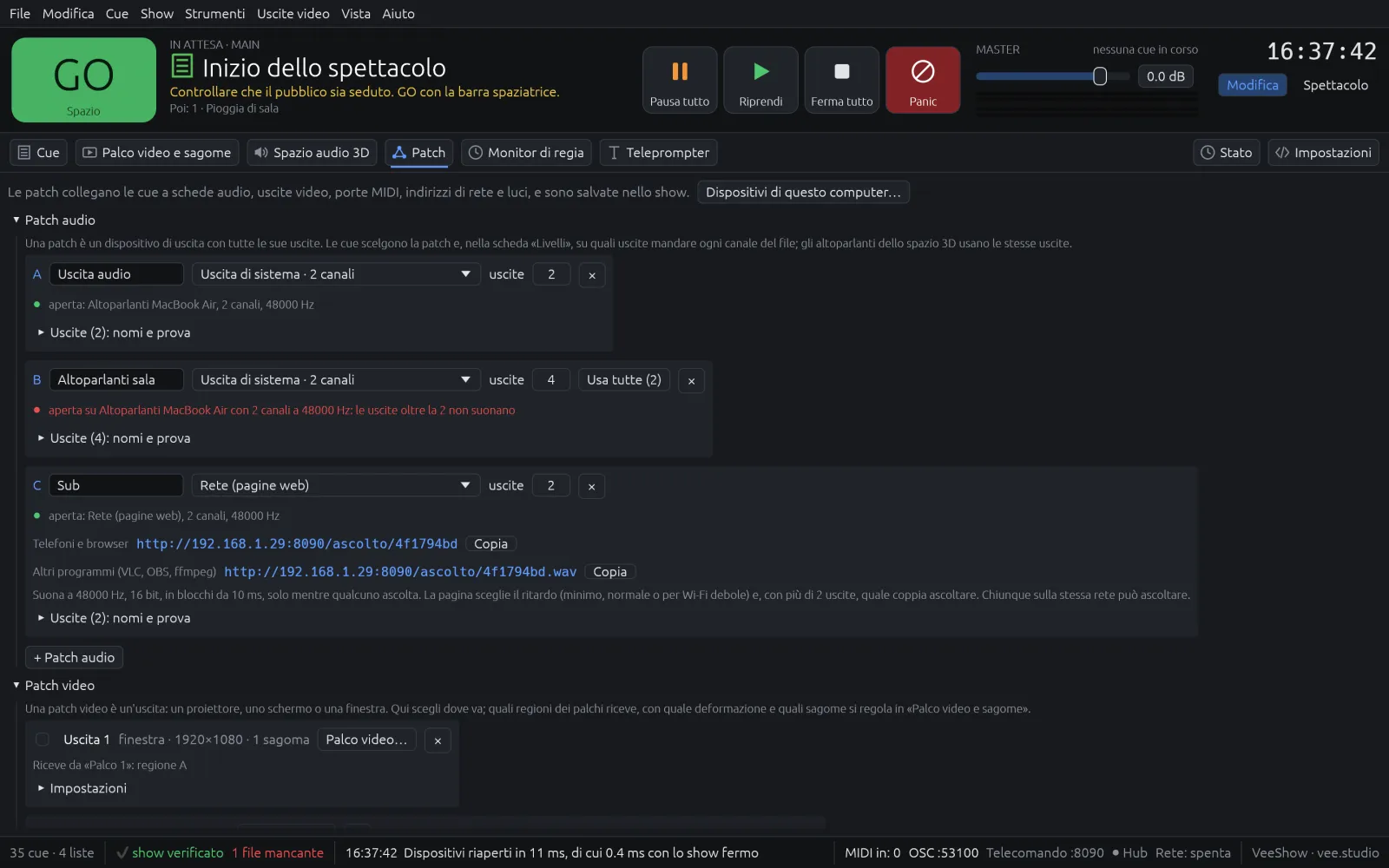
  • Adjustable frame rate and quality, with live measurements in the Patch view.
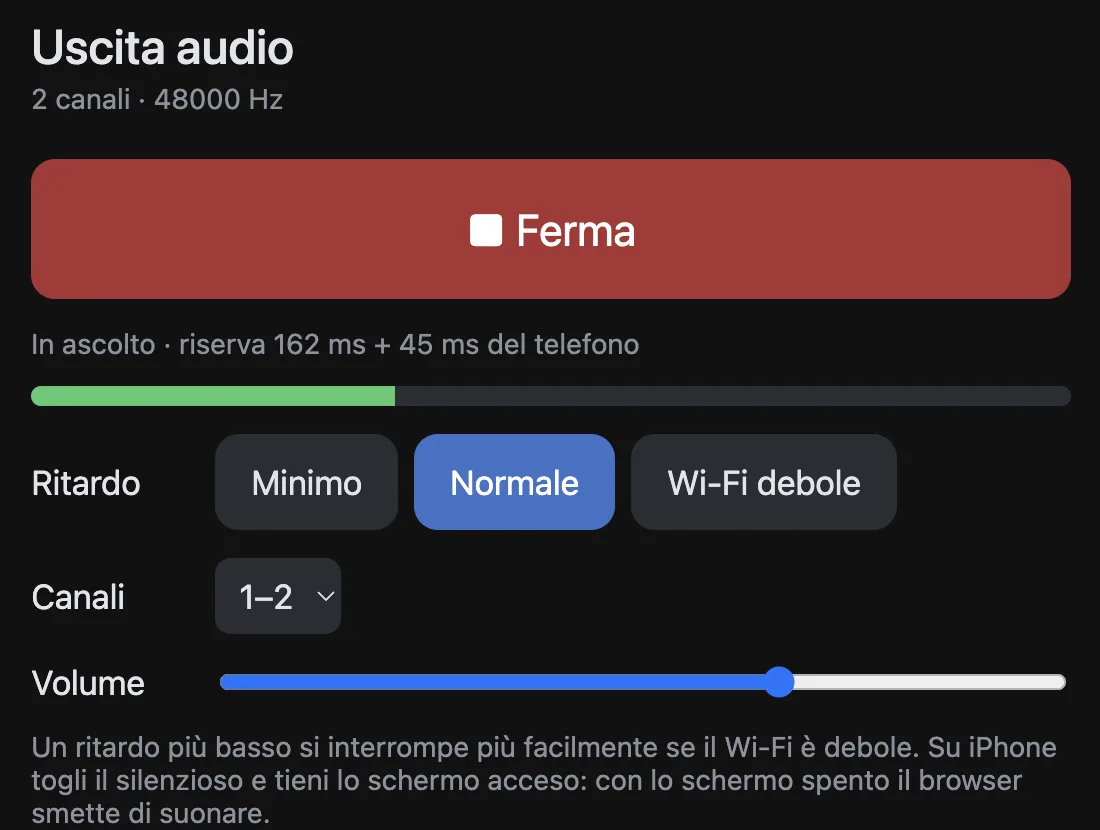
  • Listen from a phone with the delay you choose: minimum, normal or for weak Wi-Fi.
  • Continuous audio stream for VLC, OBS, ffmpeg or a computer connected to a mixer.
  • No apps to install on the devices that watch or listen.
Network audio patch
Patch view with an audio patch on the Network device and the addresses to listen from a browser and from other programs
Listening page in the browser: stop button, listening buffer, delay choice, channels and volume
Networked workflow

Several computers, one show. At the same time.

The sound engineer sets levels while video touches up the masks on another computer: every change appears on all of them right away. On GO they start together, and any of them can act as a backup.

  • Changes merged item by item: work in parallel on cues, stages and masks without overwriting each other, and undo only touches your own edits.
  • GO, stops and playhead mirrored on the other computers; incoming MIDI and OSC forwarded.
  • Every computer keeps its own devices: audio interfaces, MIDI ports and screens stay local to each one.
  • Networked media: missing or older files are copied from the computer with the most recent version, by hand or automatically.
  • Network down? Keep working, and changes are sent when it comes back without stopping the cues.
  • Mac and Windows together on the same network, with an access code.
The showin sync everywhere SoundMac VideoWindows Backupready for GO Foyerweb page Phoneremote Tabletstage monitor
Stage monitors

Stage monitors made to measure, on the network too.

Lay out the screens for the control room, the stage and the dressing rooms with the widgets you need, each styled the way you want. Any monitor can also be a web page to open on a tablet.

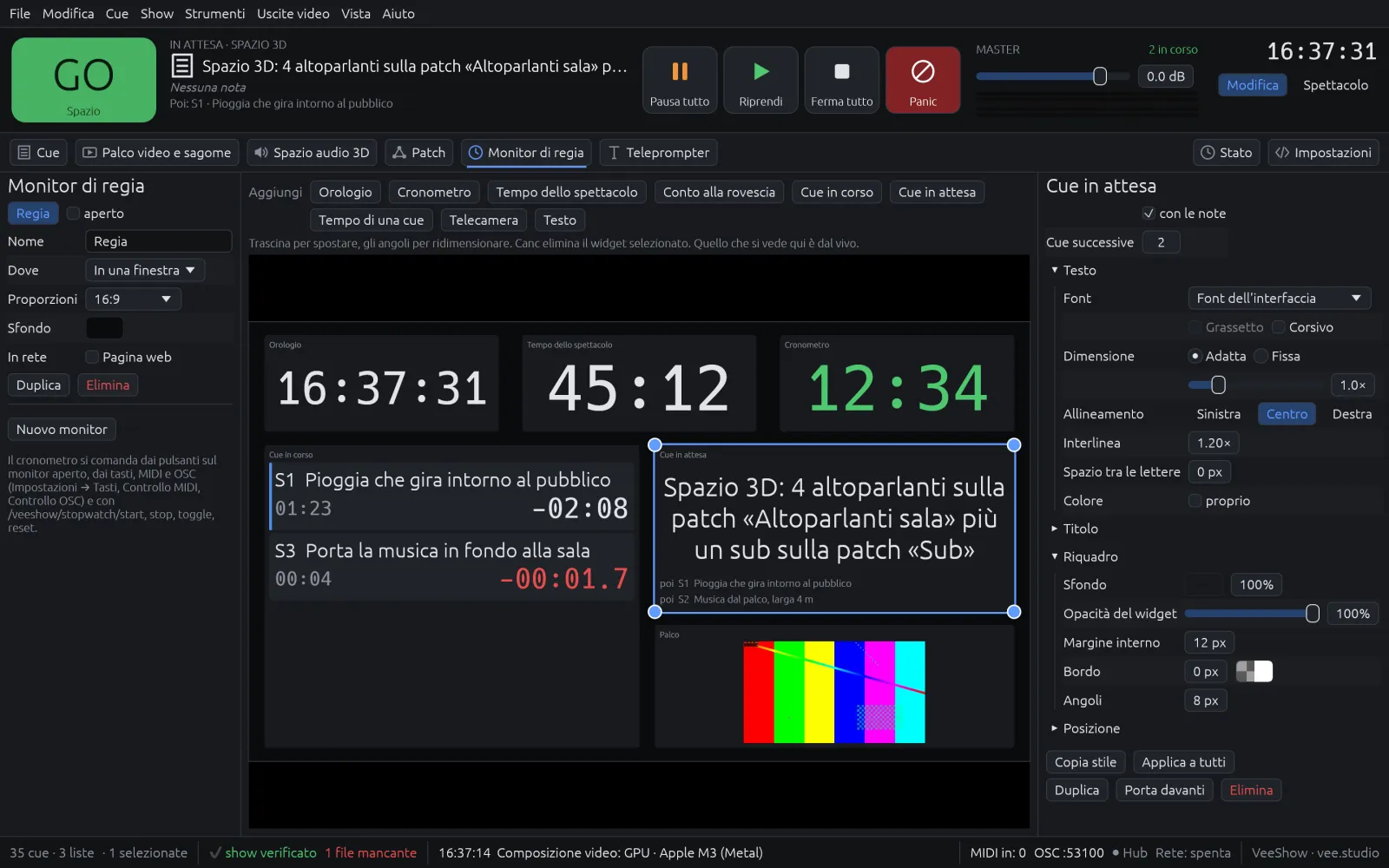
  • Free-form widgets: clock, stopwatch, show time, countdown, running cue, standby cue with notes, cue time, camera, text.
  • Full styling for every widget: font, fixed or fitted size, alignment, line height, spacing, background with transparency, opacity, border and corners.
  • RTSP and HTTP cameras inside the monitor, reconnecting on their own.
  • A web page for every monitor, to open on tablets and computers on the network.
  • Stopwatch and show time controlled from keys, MIDI and OSC.
Stage monitor
Stage monitor editor with clock, show time, stopwatch, running cue, standby cue and a camera
Teleprompter

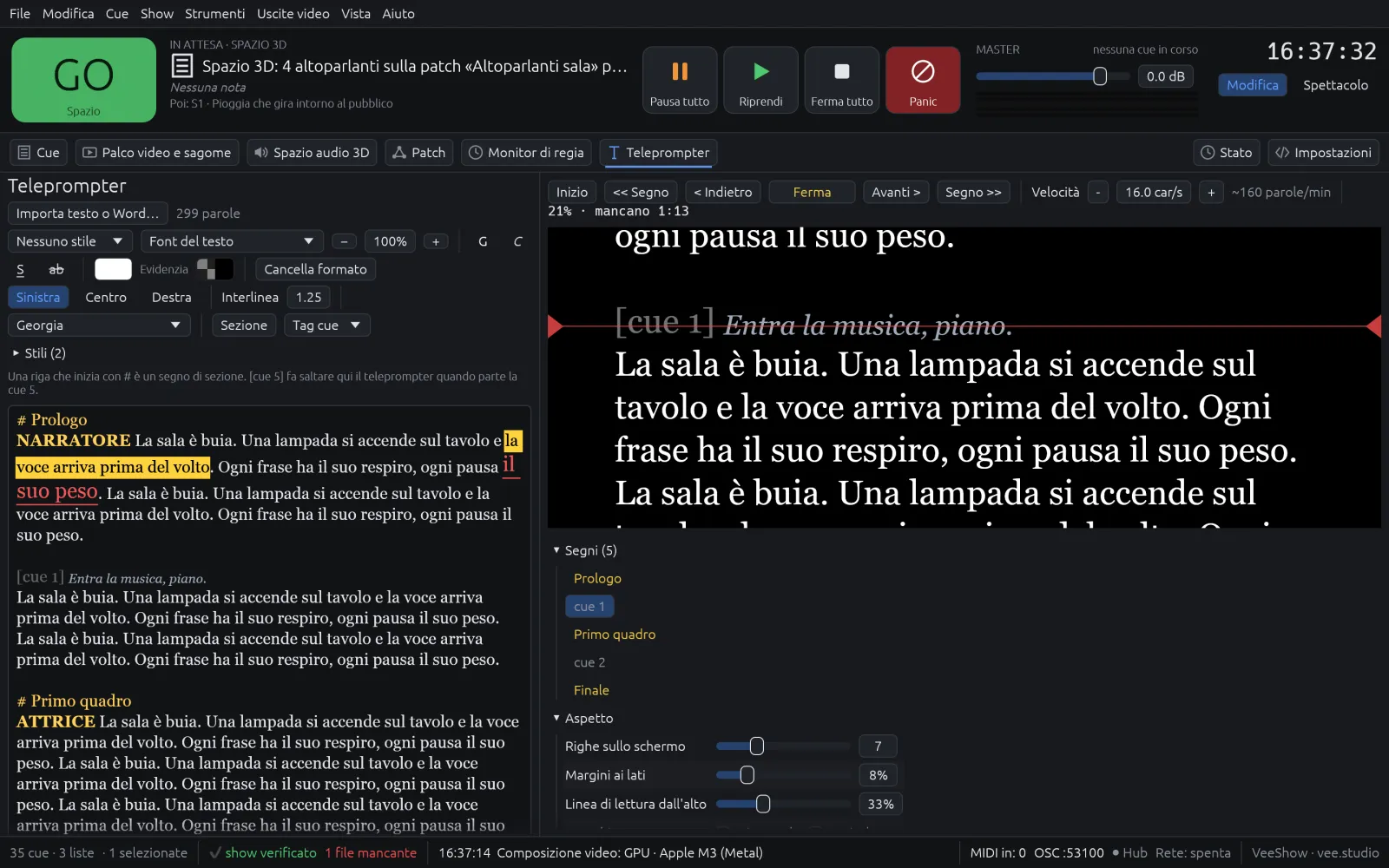
A teleprompter that writes like a word processor.

The script lives inside the show. Format it as you would in a word processor and link it to the cues: when the music starts, the text jumps to the right place.

  • Per-word formatting: font, size, bold, italic, underline, strikethrough, colour and highlight with transparency.
  • Reusable styles for characters and stage directions, and Word import (.docx).
  • Section marks and cue tags that move the teleprompter forward when the cue fires.
  • Window or full screen, horizontal and vertical mirroring, a web page for another computer.
  • Speed and position from keys, MIDI (fader included), OSC and script cues.
Teleprompter
Teleprompter: editor with formatted text on the left and the reading preview with the reading line on the right
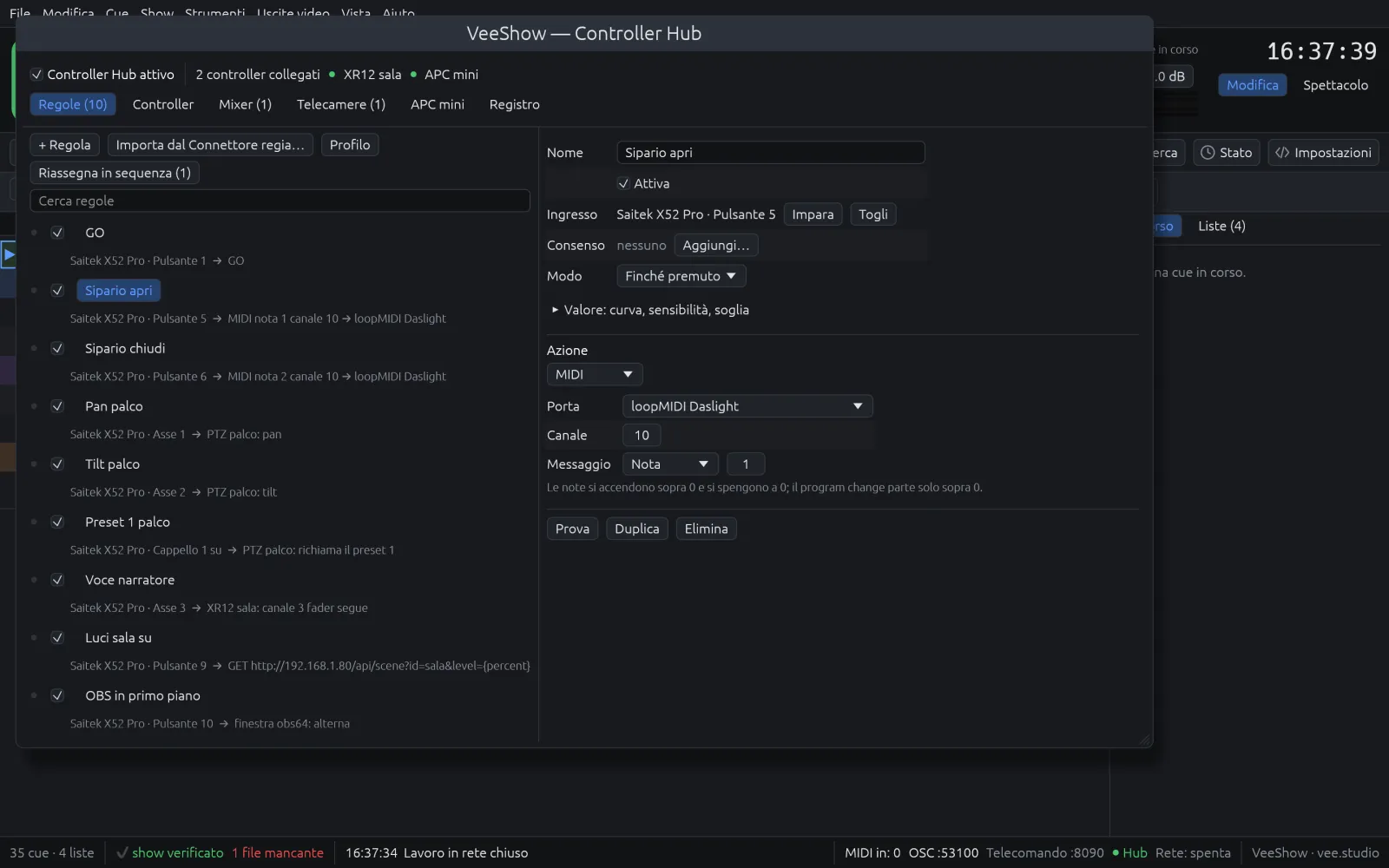
Controller Hub

Every controller becomes part of the control room.

Joysticks, USB button boxes, MIDI surfaces, digital mixers and PTZ cameras in one place, with rules you teach by pressing a button.

  • USB controllers read from their own description, including the hidden switches of some panels.
  • Rules with “Learn”, enable conditions, curves, thresholds and seven modes of use.
  • Actions: VeeShow commands and cues by number, MIDI, OSC, HTTP, mixers, VISCA cameras, windows and volume.
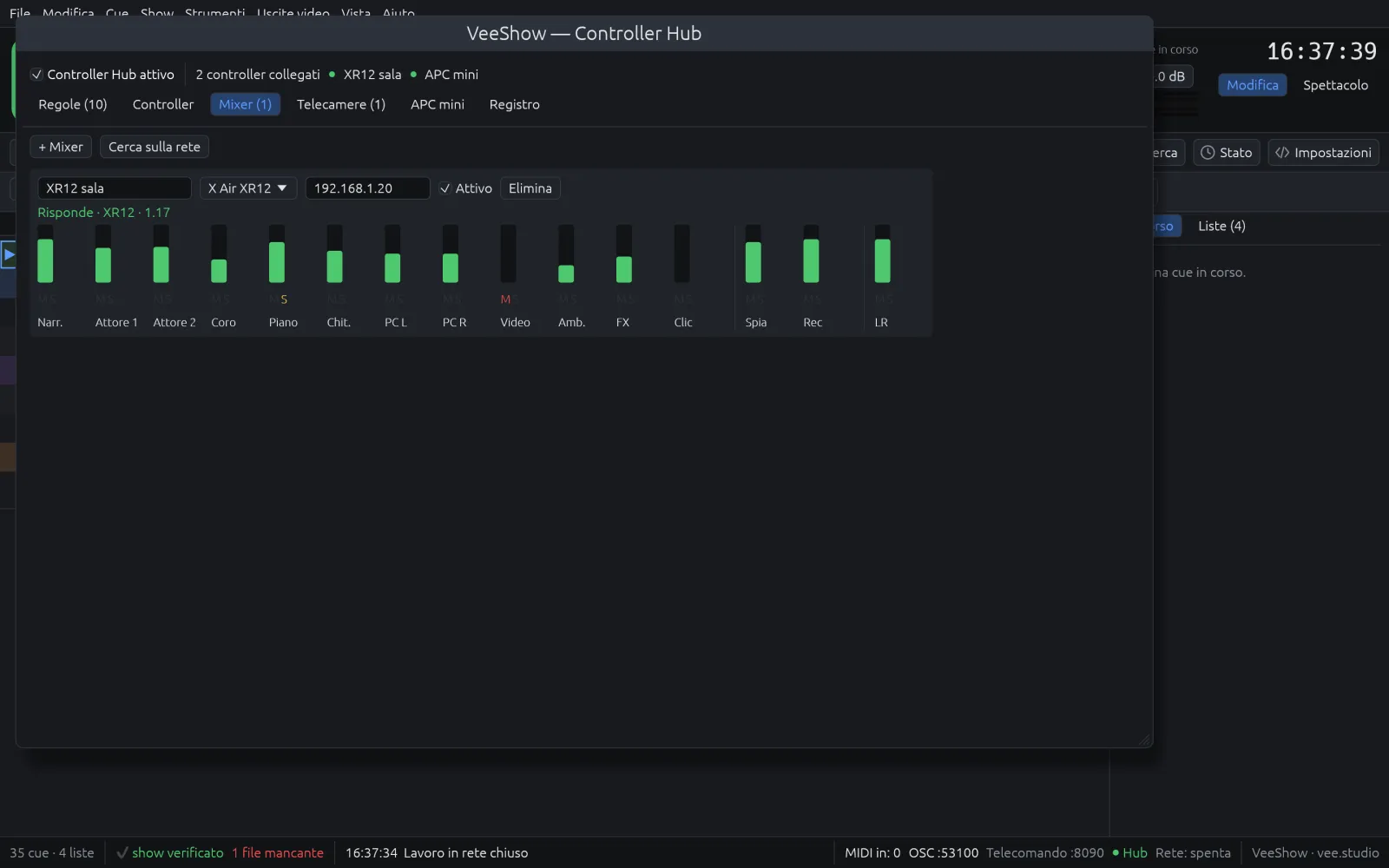
  • X Air and X32 mixers over OSC with their state followed live; APC mini as a mixer surface with LEDs and banks.
  • Respects Show mode, the minimum interval between two GOs and output locks.
Controller Hub
Controller Hub: a list of rules linking joystick buttons and axes to GO, MIDI, PTZ cameras, mixers and HTTP requests
Controller Hub with a connected mixer and its state
Lighting and protocols

Talks to everything in the theatre.

Lighting, external systems and sync: VeeShow sends and receives the protocols used in the control room, and it can be driven from a phone too.

  • Lighting over Art-Net with lighting cues in the same list and a lighting dashboard.
  • MIDI and OSC in and out, to control VeeShow and to let it control other systems.
  • MTC and LTC timecode out, and in to keep a list in time.
  • Phone or tablet remote: GO, pause, stop, panic, playhead, teleprompter and timers, with an access code.
  • Input and output lock on one computer, to rehearse without sending anything to the rig.
Art-NetLighting and DMX nodes
MIDIMessages and MIDI files
OSCCommands in and out
MTCMIDI timecode
LTCTimecode on an audio channel
HTTPPages, remote, actions
VISCAPTZ cameras
RTSPCameras in the monitors
HIDUSB joysticks and button boxes
Safety on stage

Made not to let you down in front of the audience.

On stage there is no time to fix things. VeeShow prevents the most common mistakes and, when something goes wrong, tells you right away and tries to put things back on its own.

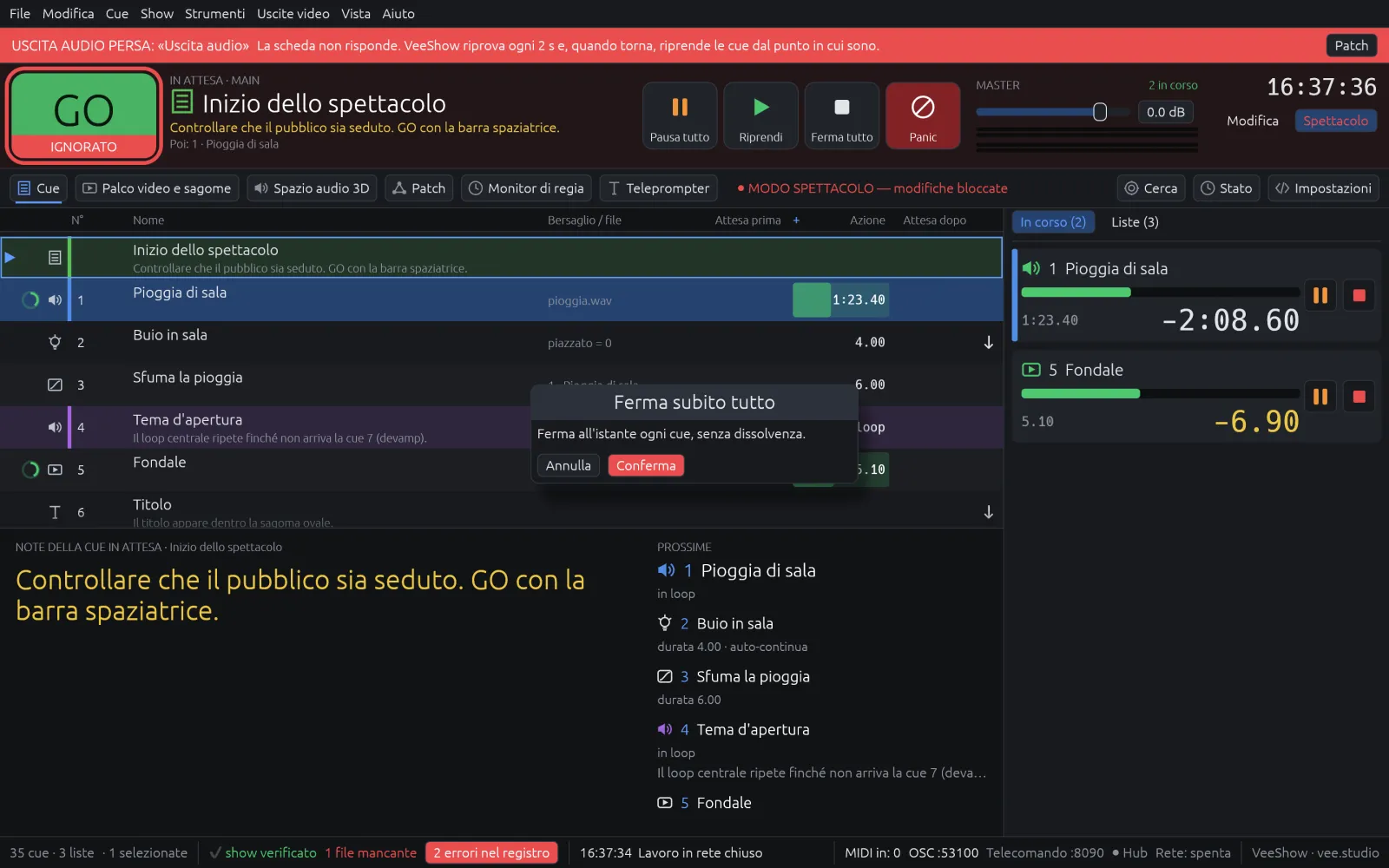
  • Show mode: editing locked, large notes, upcoming cues and remaining times with warning colours.
  • Minimum interval between two GOs, so a double tap does not fire two cues.
  • Confirmation for Stop all, Reset and Reopen devices during the show.
  • Recovery copy of unsaved changes and a backup of the previous version on every save.
  • Audio interface or monitor unplugged: immediate warning and recovery when they come back.
  • Missing files found automatically and the whole show collected into one folder to take on tour.
Show mode
Show mode with a lost audio output warning, a GO ignored because it came too close to the previous one, and the Stop all confirmation
Mac and Windows

The same show, on any computer in the control room.

Same file, same features, even on a network of different systems. Every computer uses its own audio interfaces, MIDI ports and screens.

macOS

GPU video compositing with Metal, the system's audio interfaces and MIDI ports, outputs on every connected display.

Windows

The same features, with GPU video compositing on the graphics card and Windows audio and MIDI devices.

Together

A Mac for audio and a PC for video work on the same show, on the same network, at the same time.

Who it's for

From drama to large-scale installations.

Drama and opera

Precise audio cues, a teleprompter linked to the script, monitors for stage and dressing rooms.

Musicals and dance

Video on several projectors with masks, audio moving through the room, timecode to stay in time with the music.

Events and conventions

Several computers in the control room, video on any screen on the network, a remote on your phone.

Museums and installations

Automatic sequences triggered by clock, OSC and MIDI, and mapping on irregular surfaces.

From the first rehearsal to the last night

One path, from the first idea to the tour.

Prepare

Drag your files into the list, connect audio and video outputs with the getting-started guide, and build your cues.

Rehearse

Several computers on the same show: audio, video and lighting work together and see changes as they happen.

Go live

Show mode, GO and the whole control room in hand, with monitors and teleprompter wherever they are needed.

Run and tour

Collect the show into one folder, sync the media to another computer, and you are ready again.

Early access

Bring VeeShow into your control room.

We are opening VeeShow to the first companies, theatres and technicians. Tell us what you do and what you need: we will get back to you to try it together on your show.

  • Mac and Windows versions
  • Direct contact with the people building VeeShow
  • Your show's needs help us decide what comes next

FAQ

Frequently asked questions

Which systems does it run on?

macOS and Windows. The show is the same file on both, and computers running different systems can work together on the same show.

Can I work with several computers at once?

Yes. One computer shares the show and the others join over the local network with an access code. Everyone sees the others' changes right away, GOs are mirrored on every computer and any of them can act as a backup. Missing media files are copied from the computer that has them.

Do I need an internet connection?

No. The networked workflow, web pages, monitors, teleprompter, virtual outputs and remote only use the theatre's local network.

What can I connect?

Multichannel audio interfaces, projectors and displays, MIDI ports, Art-Net nodes, OSC systems, USB joysticks and button boxes, X Air and X32 mixers, VISCA PTZ cameras and RTSP or HTTP cameras. Plus any phone, tablet or computer with a browser, for the remote, monitors and network outputs.

Is it ready for my show?

VeeShow is in early access. The features described here are in the program, and we are testing them with real rigs and real shows: that is why we are looking for the first control rooms. Tell us about your production and we will tell you honestly whether the time is right.

What language is the interface in?

The interface is currently in Italian, across menus, windows and web pages. If you need another language, let us know in the form.